
See how teams use
timesheets and clocking in
to keep hours accurate
Clock events captured automatically for every session
5
Default weekly hours limit, ready to adjust
48h
Grace period so forgotten clock-outs are covered
60 min
Export timesheets for payroll
PDF & CSV


Working process
From paper timesheets to
live clocking in

Clock in
01
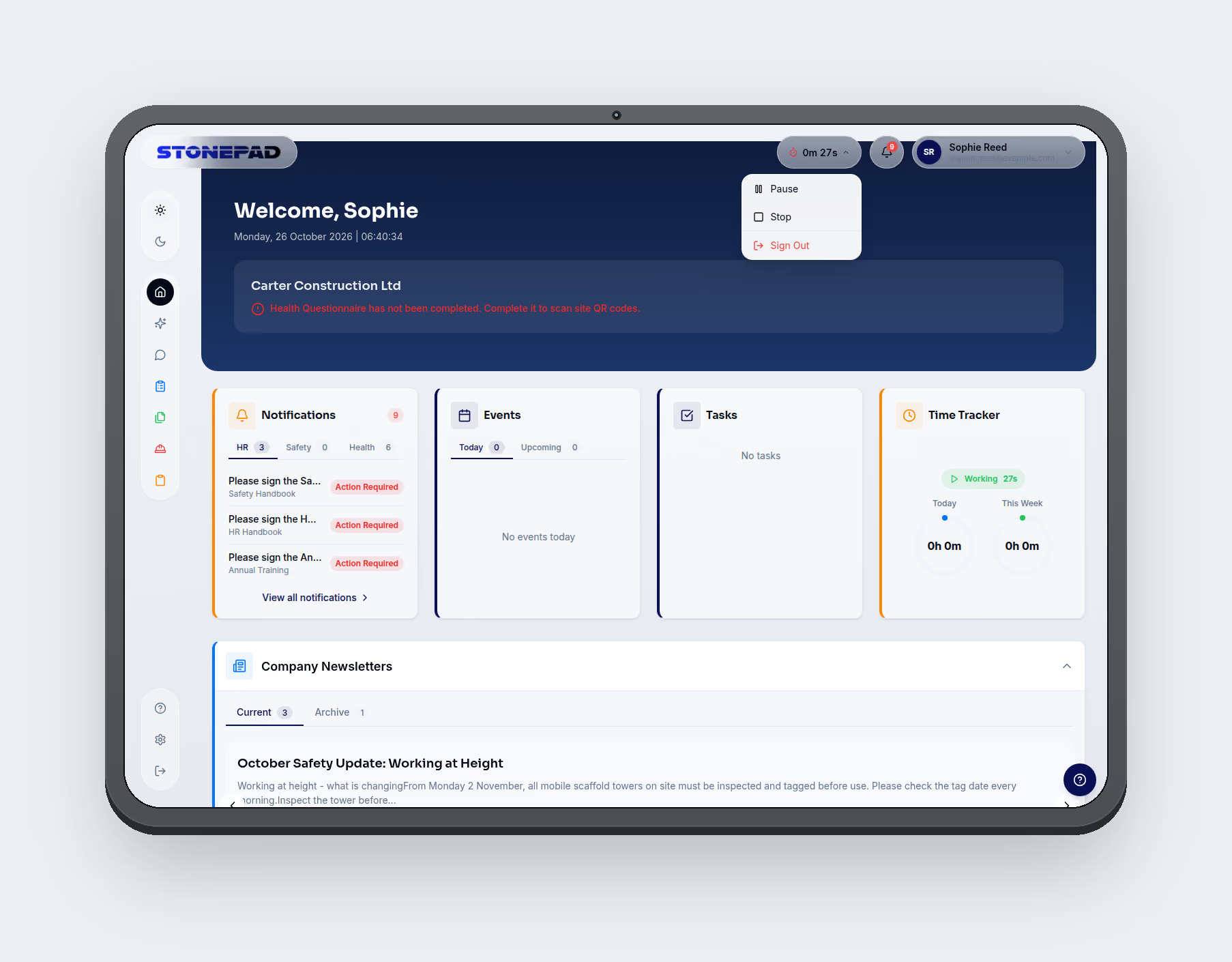
Press Start Timer or sign in on site to begin a working session.
Pause and resume
02
The live timer tracks Working and Paused time through the day.
Review the week
03
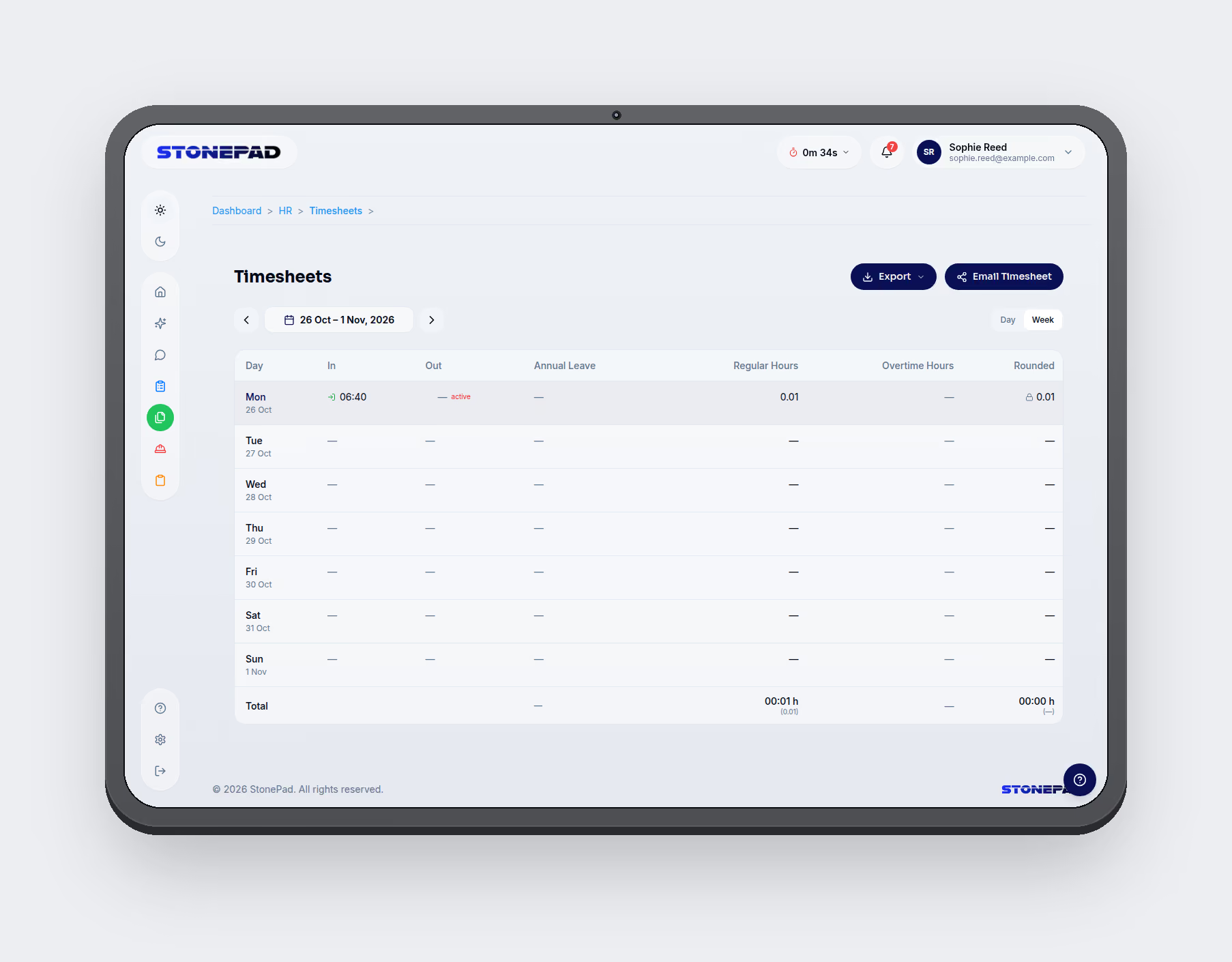
Check the Overview and Timesheets tabs, with edits and reasons kept in History.
Export your hours
04
Export timesheets as PDF or CSV, ready for payroll and records.


How It Works
Everything your timesheets need,
in one place
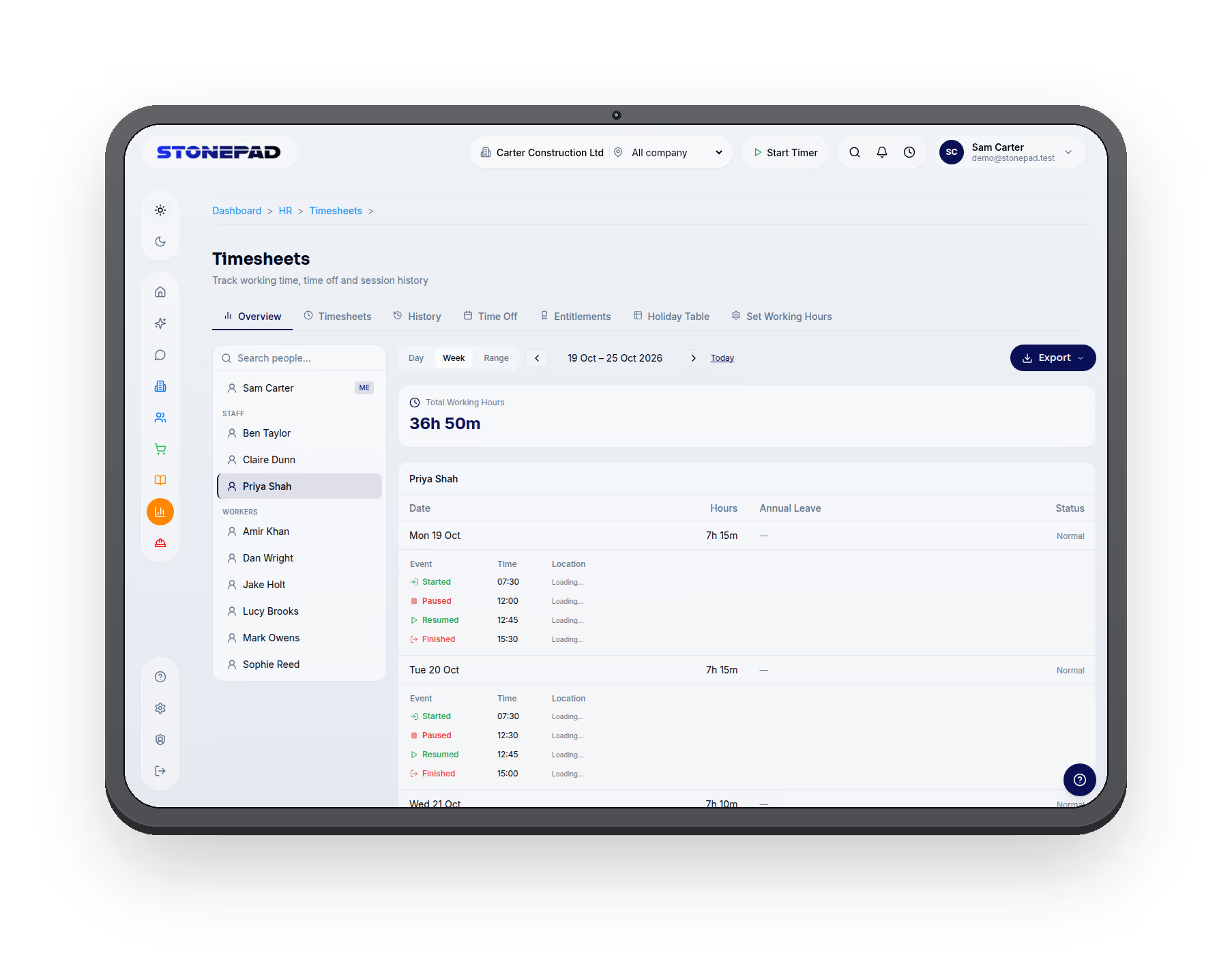
Set Working Hours with daily and weekly limits and Auto Sign-Out after a grace period, track Time Off, Entitlements and the Holiday Table, then export as PDF or CSV.
LIVE SESSION TIMER
Start Timer, pause, resume and stop your working session
WEEKLY OVERVIEW
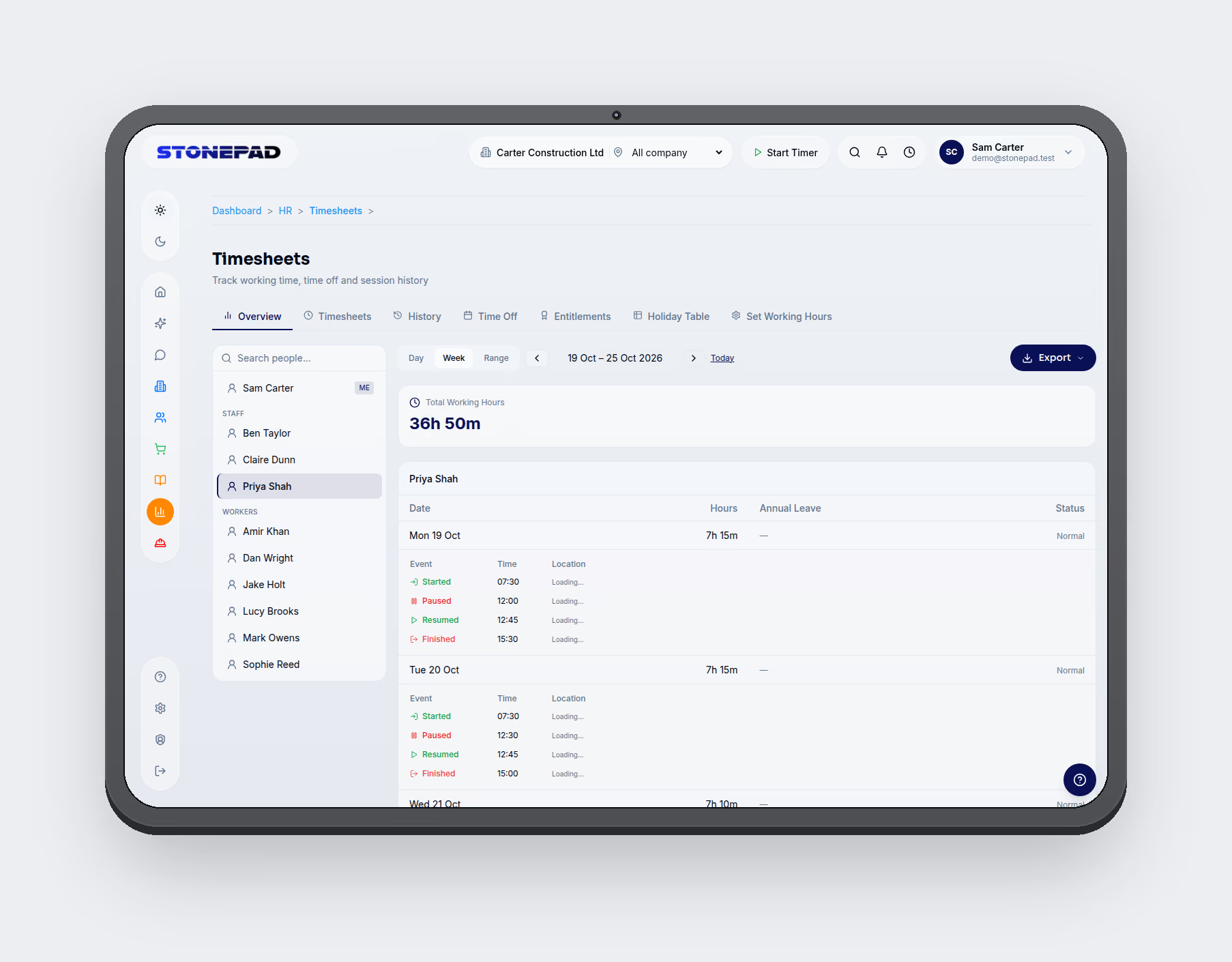
Switch to Week view and spot overtime in the Overview tab

Included in StonePad

EDIT WITH A REASON
Correct a sign-in time and record why the change was made
AUTO SIGN-OUT
Switch on Auto Sign-Out and set the grace period
WHO IS CLOCKED IN
Pick a site and see who has clocked in and when
Gallery
See it in action
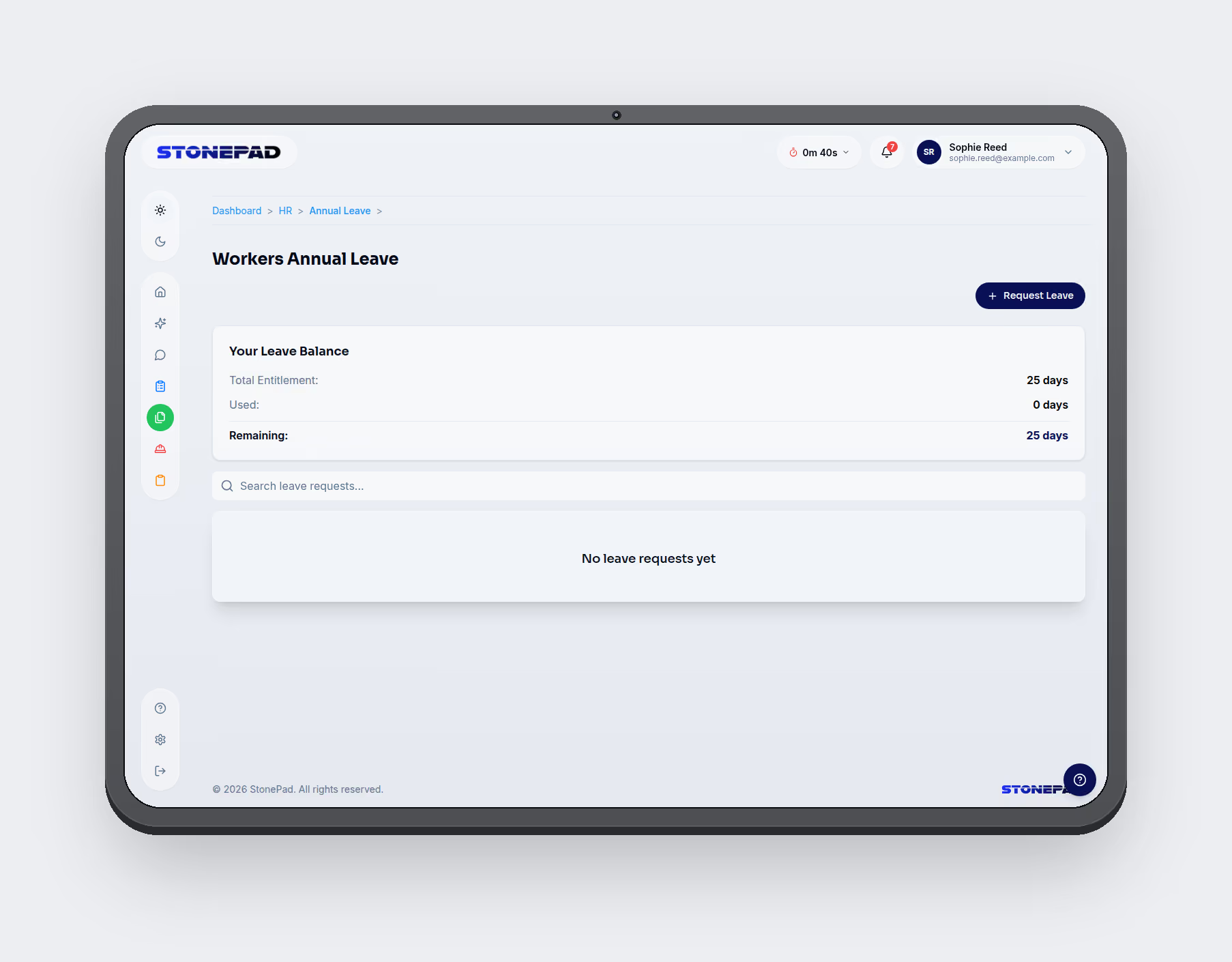
Take a look at some of the screenshots of this module in StonePad.

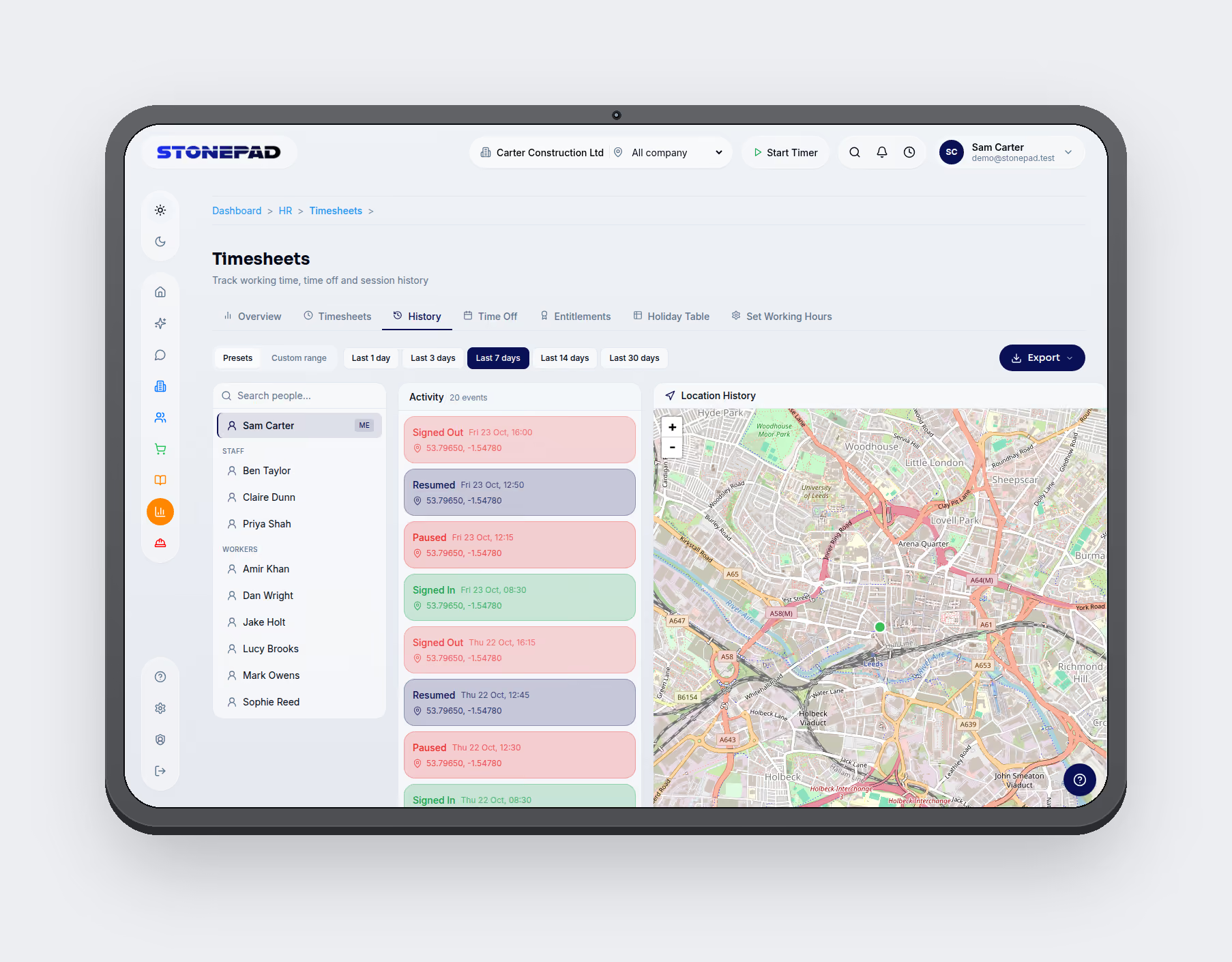
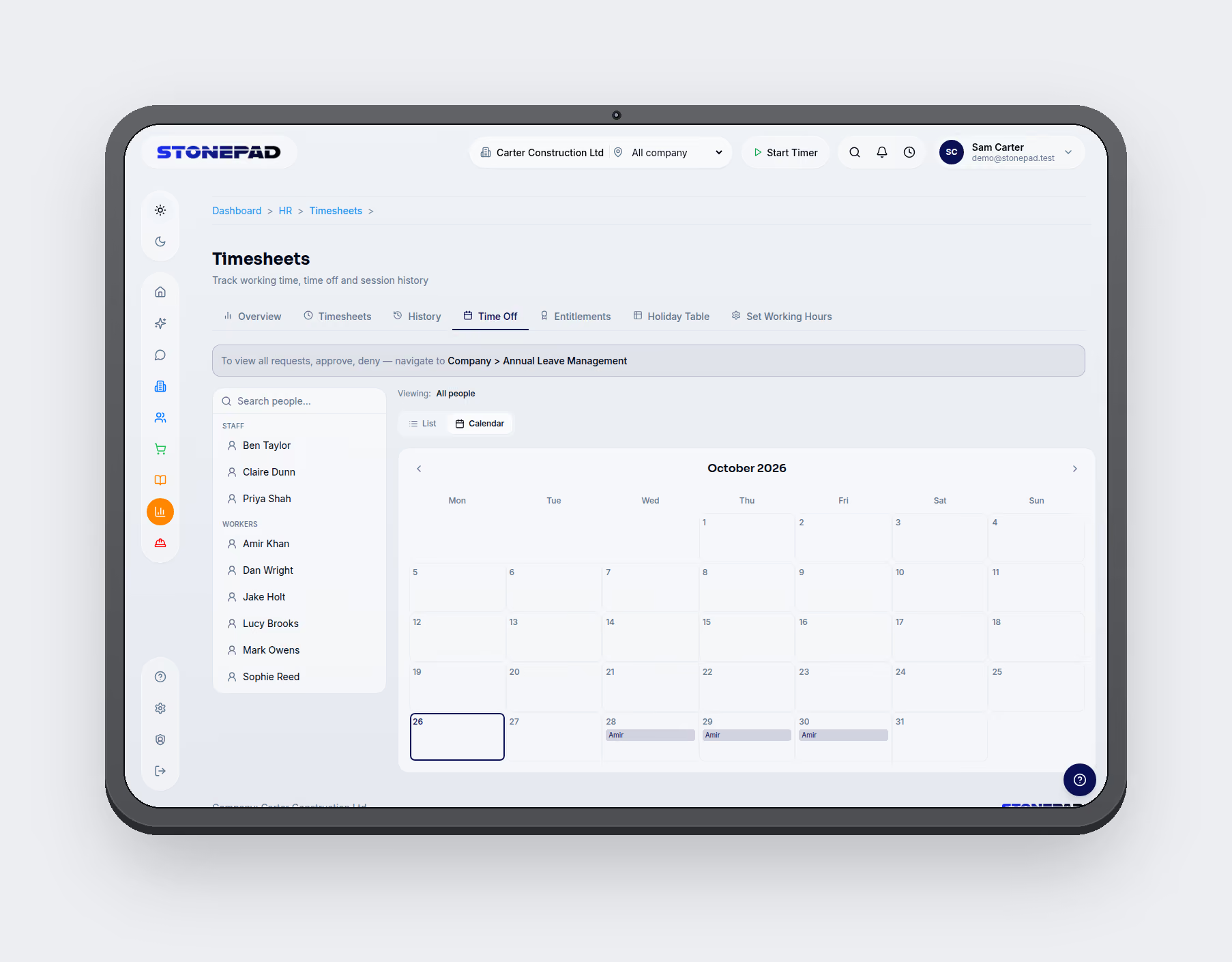

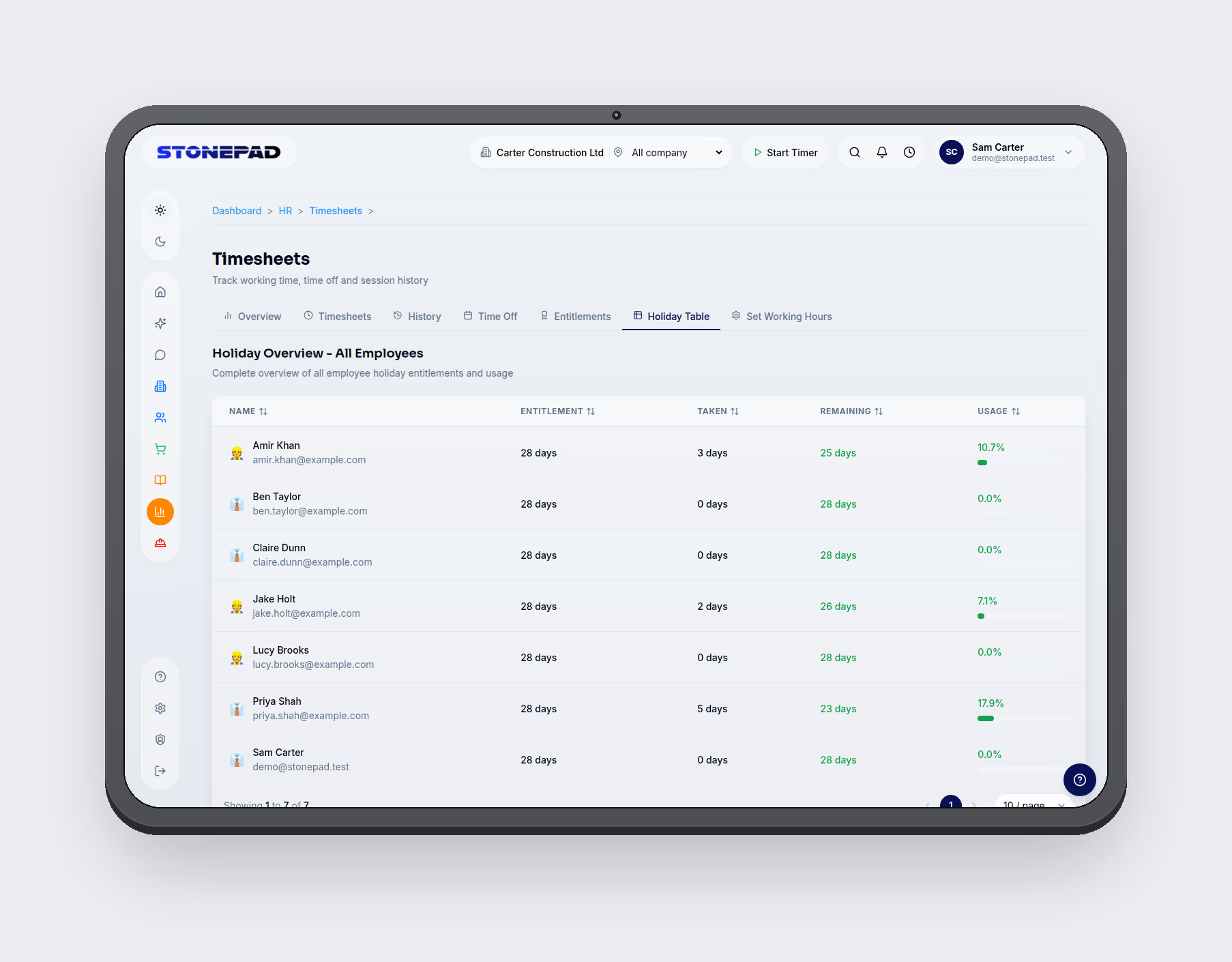
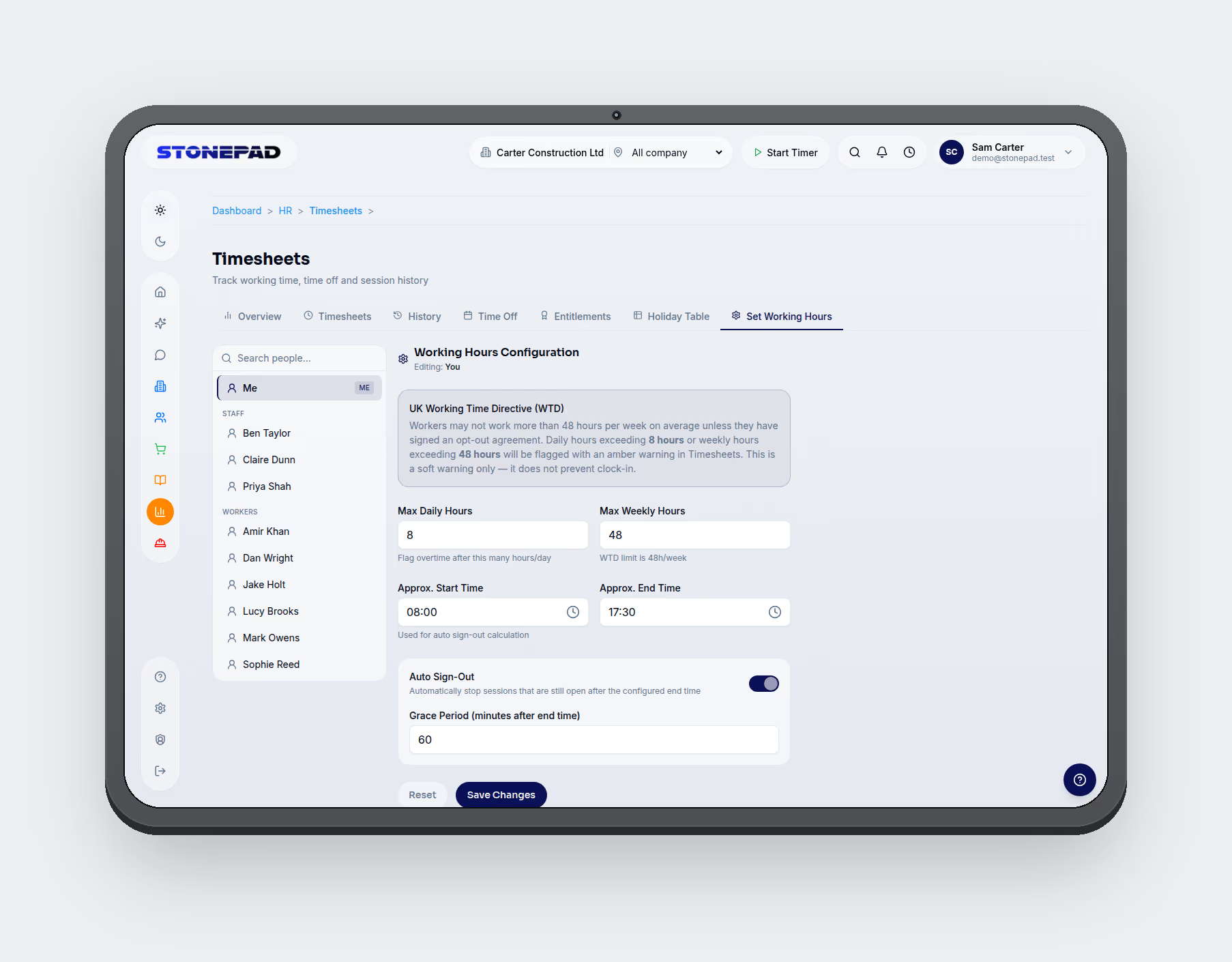
No items found.
Problems
Everyday timesheet headaches that cost time, money and accuracy.
Paper timesheets filled in from memory
Missed sign-outs leaving sessions open
Leave and holidays tracked somewhere else
Hours rekeyed by hand for payroll
Long weeks going unnoticed
Solutions
Built-in tools that help you record hours accurately and keep them ready for payroll.
Live session timer with Pause and Resume
Auto Sign-Out after end time and grace period
Time Off, Entitlements and Holiday Table tabs
Export as PDF or CSV in a click
Daily and weekly hours limits you set
Ready to start?