
See how contractors use
invoicing to get paid
faster and stay in control
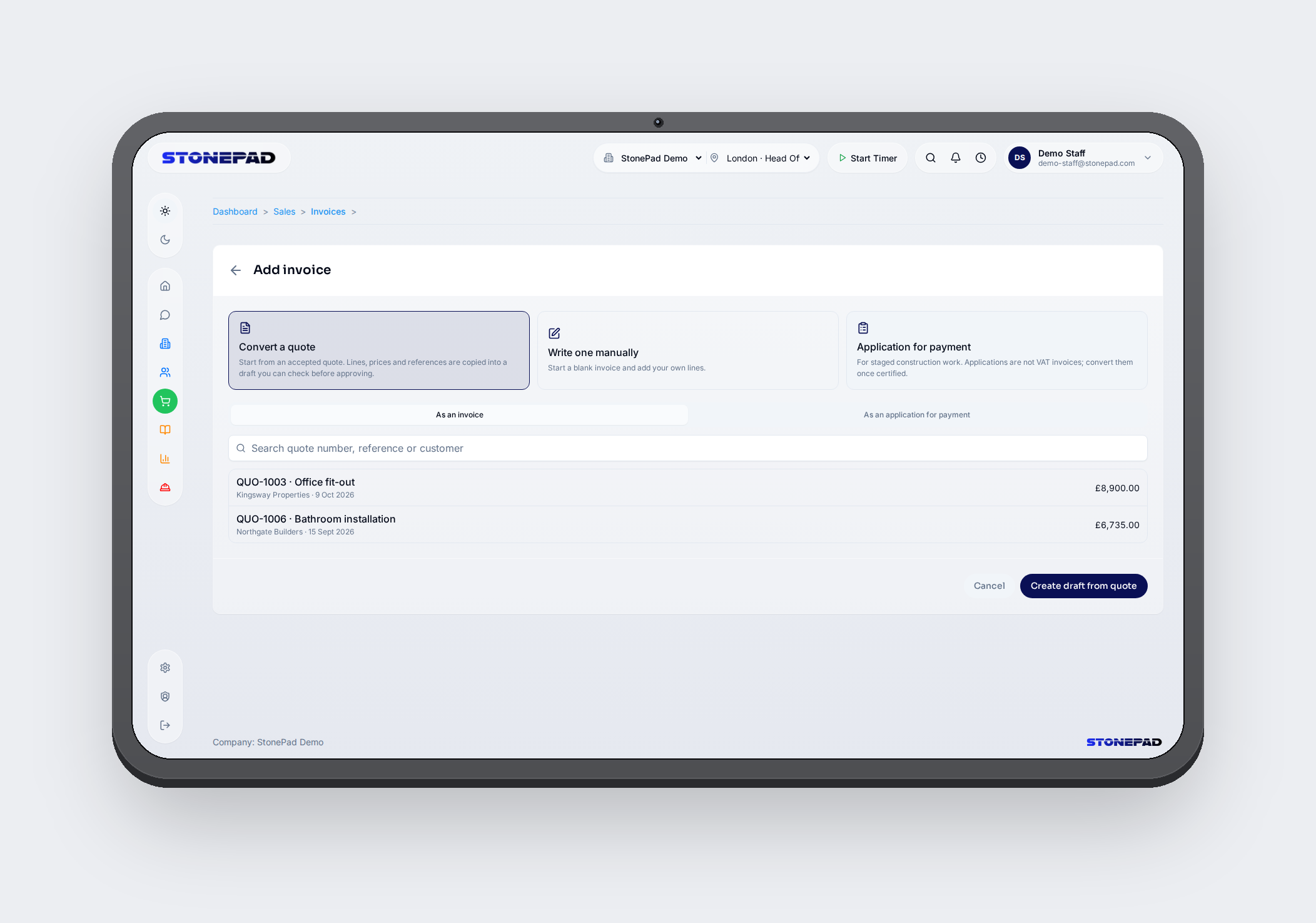
To raise an invoice
3 ways
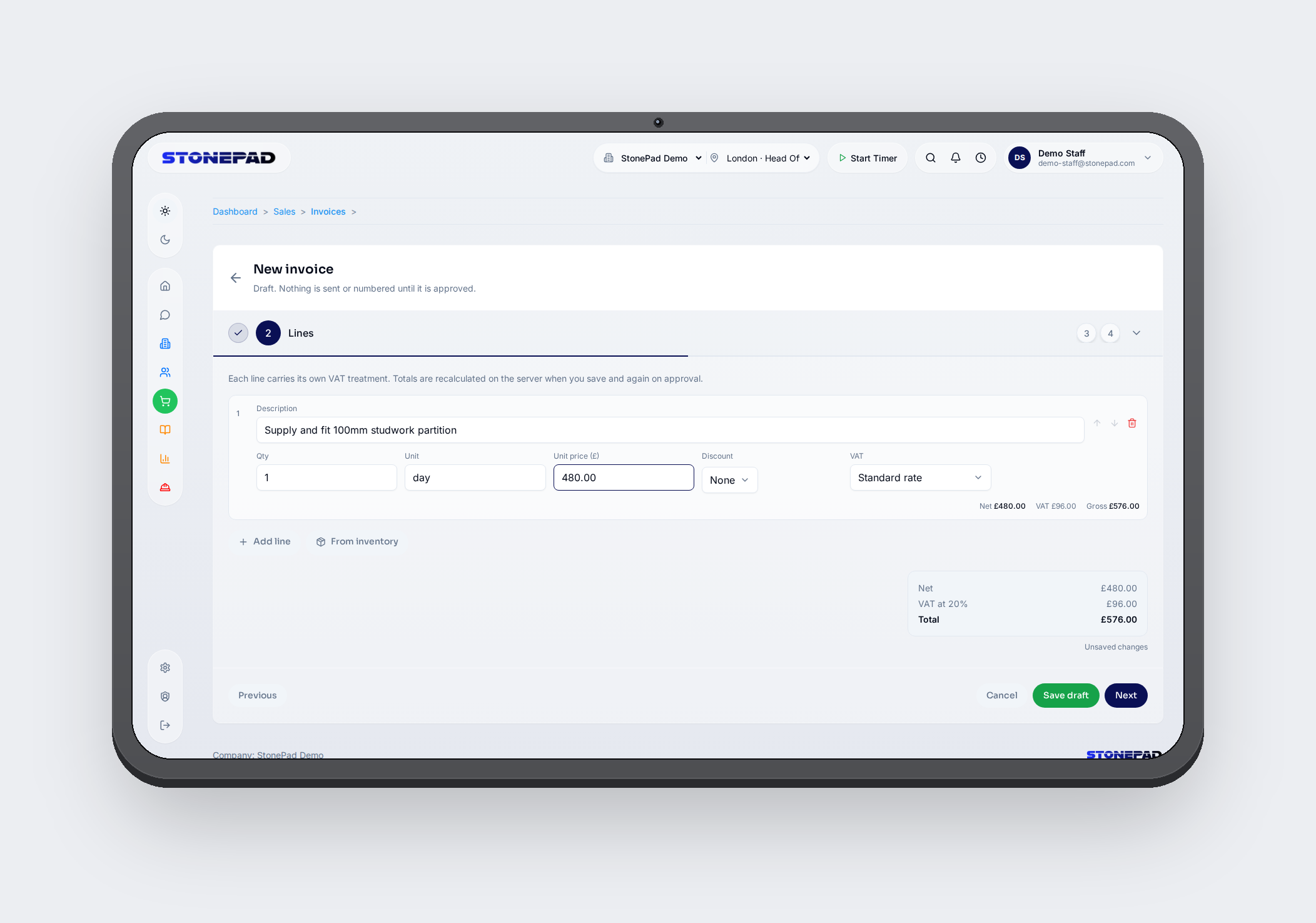
Net, VAT and gross shown on every invoice
VAT
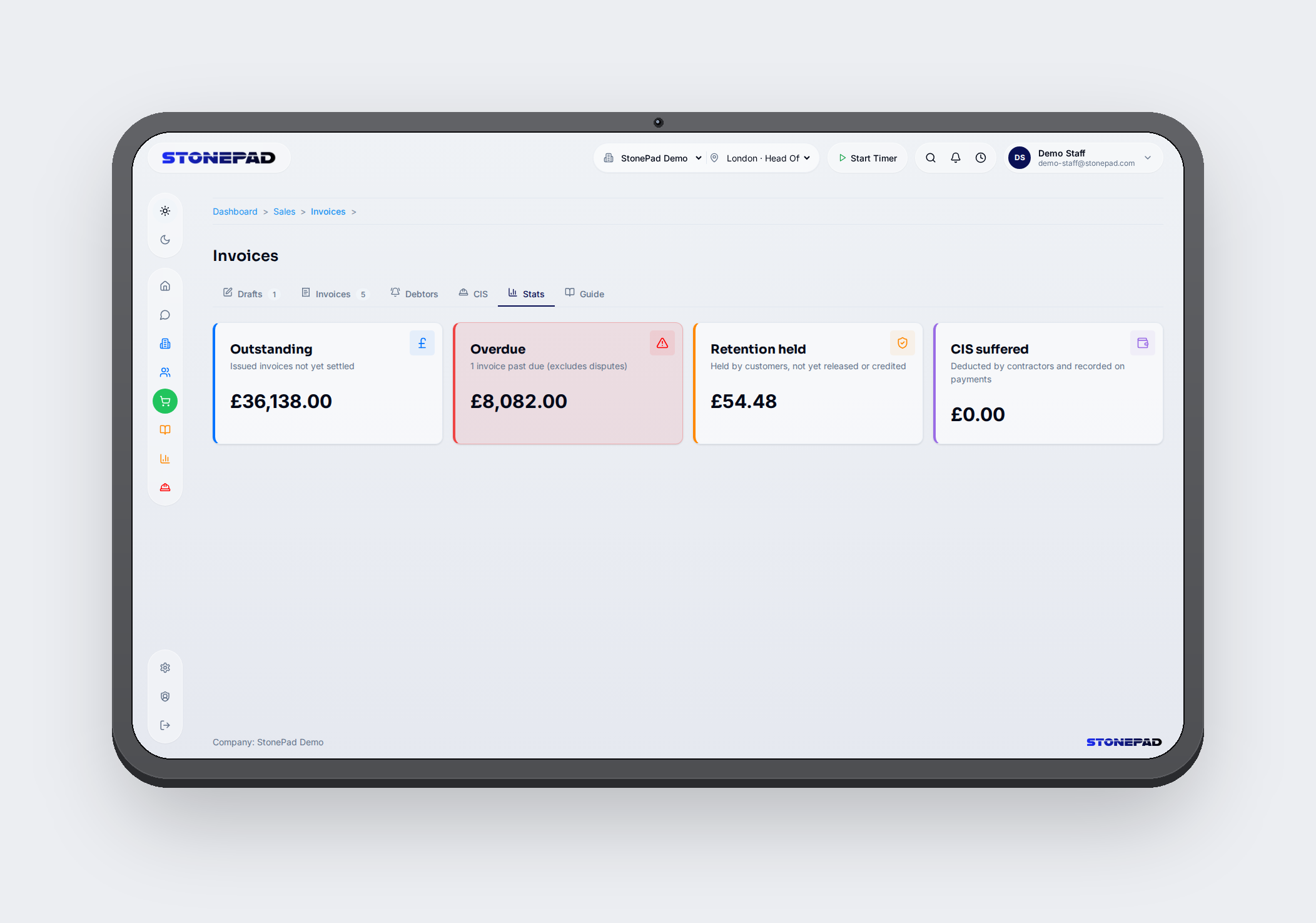
Badges flag invoices that are late
Overdue
Retention held and CIS suffered tracked
CIS



Working process
From accepted quote to a
VAT invoice in your customer's inbox

Choose the source
01
Convert an accepted quote, write an invoice by hand or raise an application for payment.
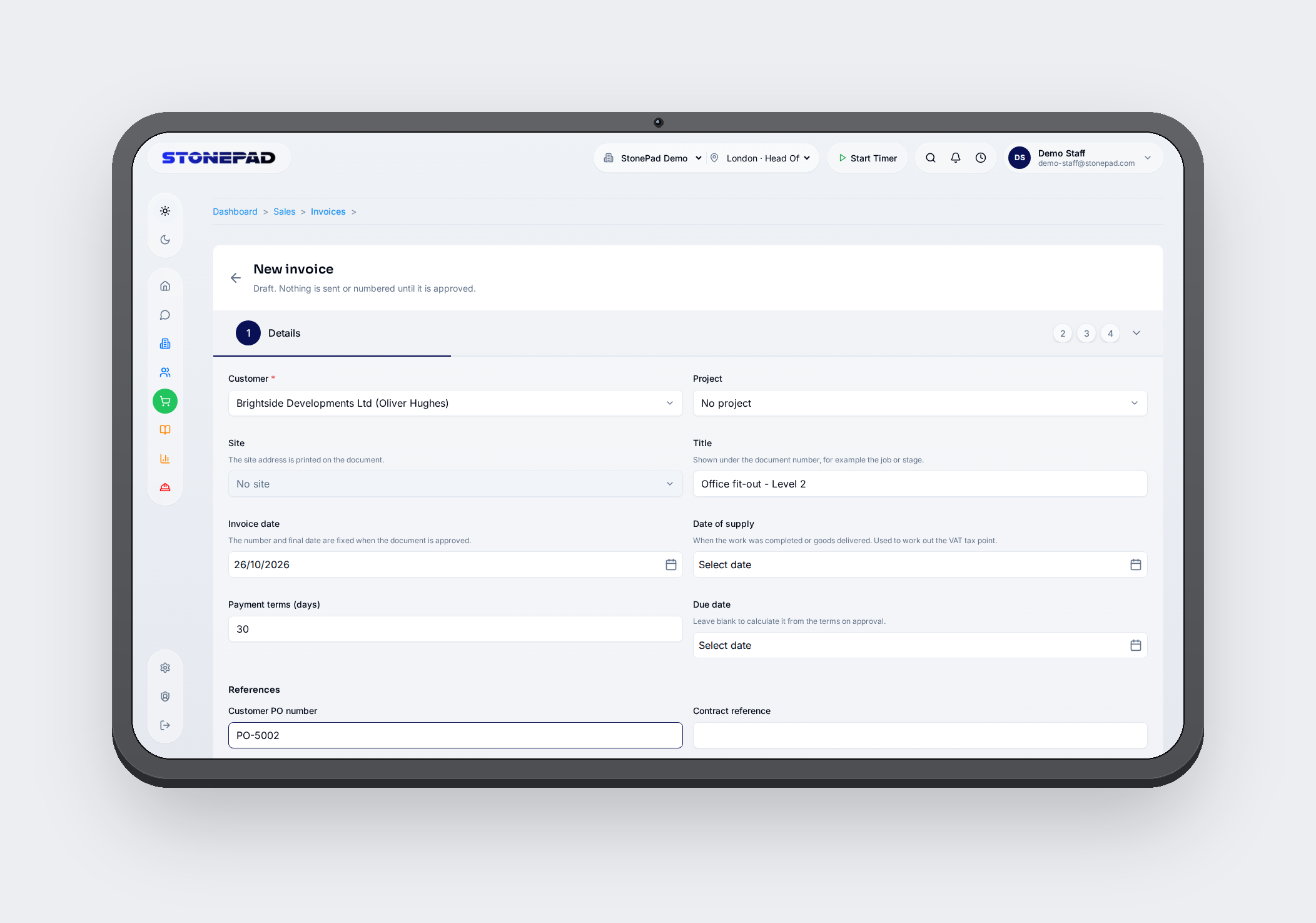
Add the details
02
Pick the customer and site, then add the PO number and payment terms.
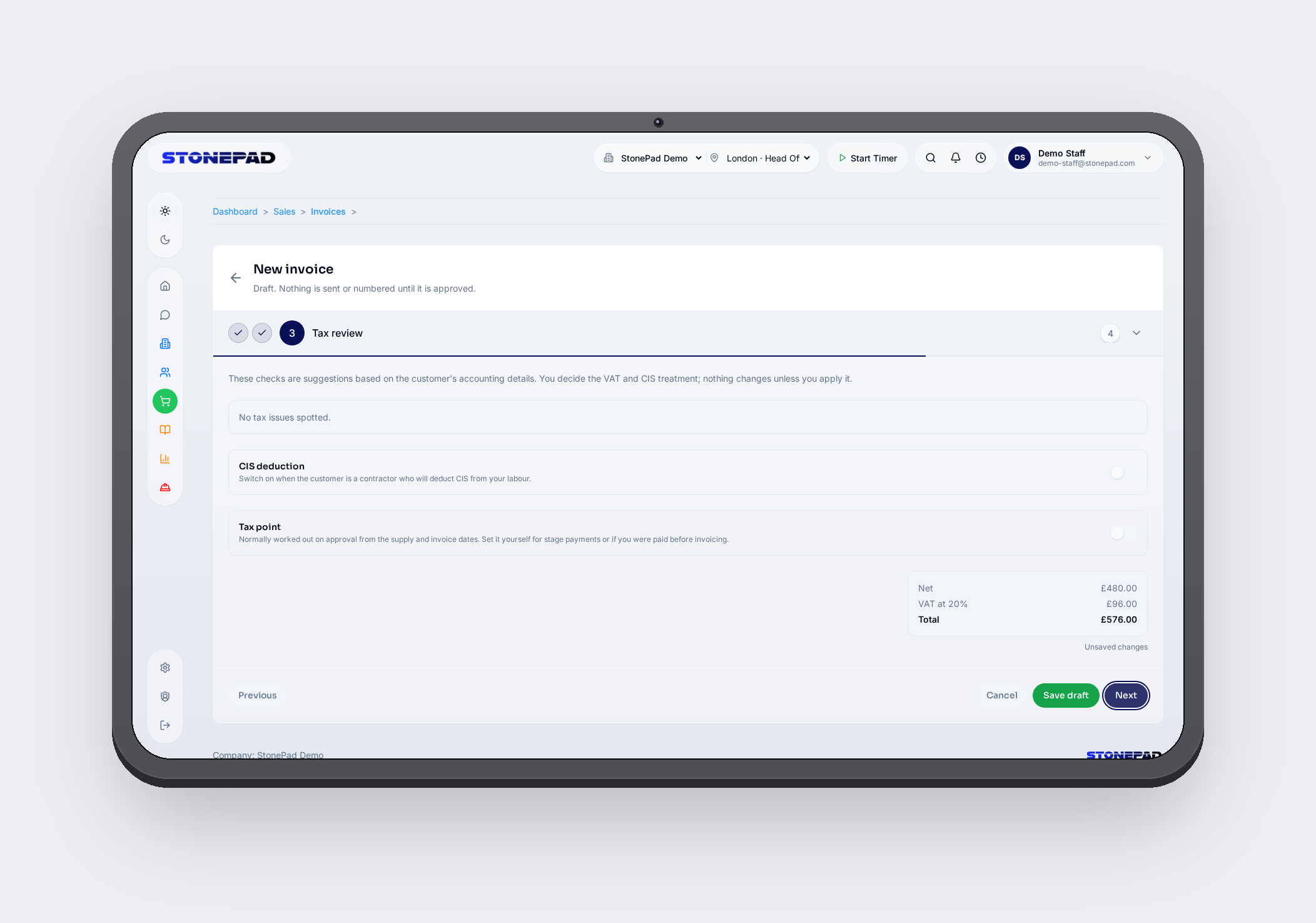
Check the lines and tax
03
Review net, VAT and gross totals, then run the tax review before you send.
Send and track
04
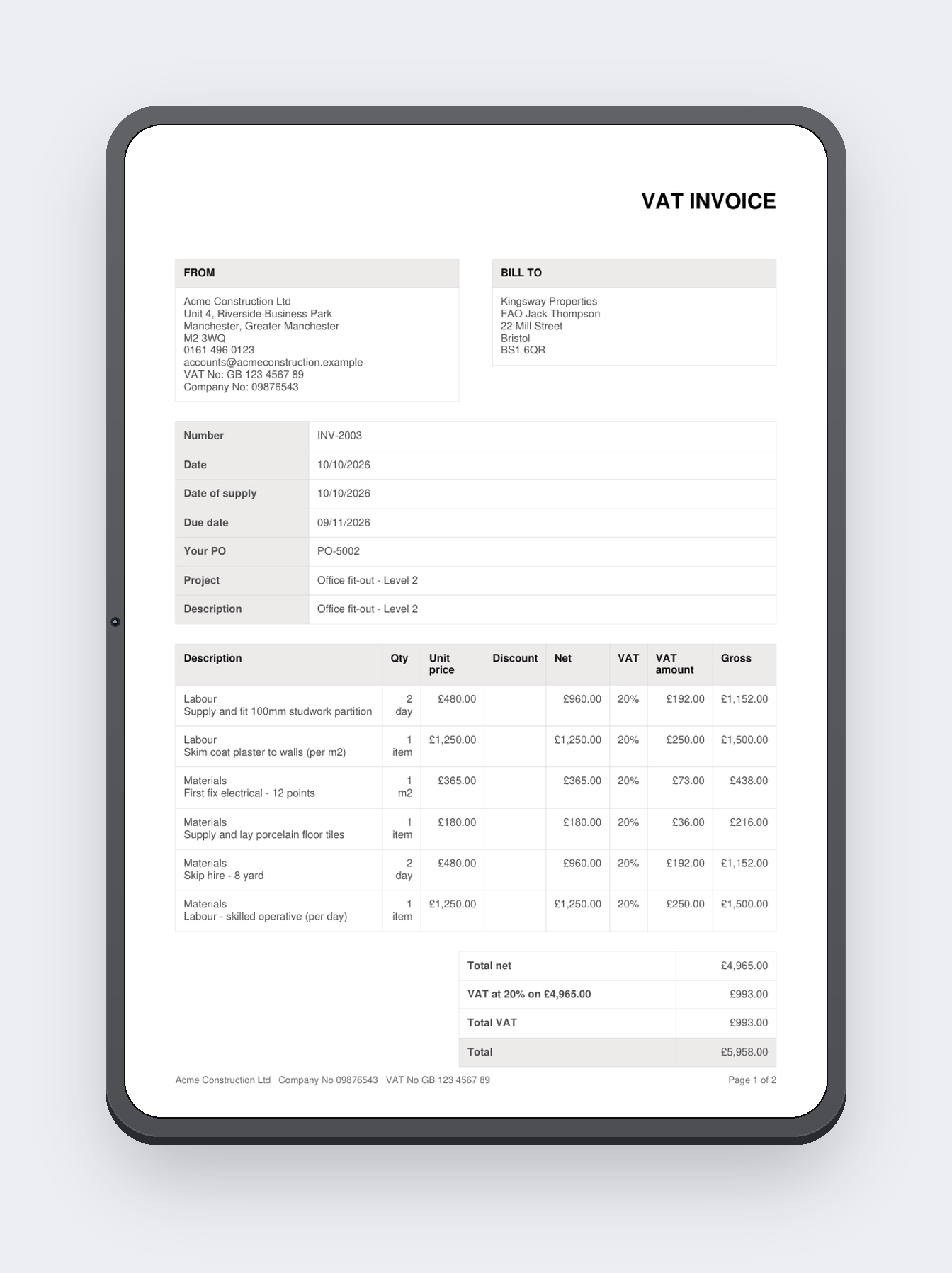
Download the VAT invoice PDF and follow its status, balance and due date.
How It Works
Everything an invoice needs,
from quote to payment
Download the VAT invoice PDF and follow each invoice's status, balance and due date. The invoice stats show what is outstanding, overdue, retention held and CIS suffered.
THREE WAYS IN
Start from a quote, from scratch or from an application for payment
LINES & VAT
See net, VAT and gross as you add lines

Included in StonePad

INVOICE DETAILS
Add customer, site, PO number and payment terms
TAX REVIEW
Check the invoice for tax issues before it goes out
INVOICE PDF
Generate a VAT invoice PDF
Gallery
See it in action
Take a look at some of the screenshots of this module in StonePad.


No items found.
Problems
Retyping quotes into invoices and losing track of who still owes you money.
Quotes retyped into invoices
Invoices missing the PO number or terms
VAT and totals checked by hand
Overdue invoices that go unnoticed
Retention and CIS tracked on spreadsheets
Solutions
Quotes become invoices in a few steps, with the money you are owed always in view.
Convert a quote into an invoice
Customer, PO and payment terms on every invoice
Net, VAT and gross worked out as you add lines
Overdue badges and a balance on each invoice
Retention held and CIS suffered in the stats
Ready to start?