
How can we help you?
Find quick answers, setup guides, and practical automation tips.
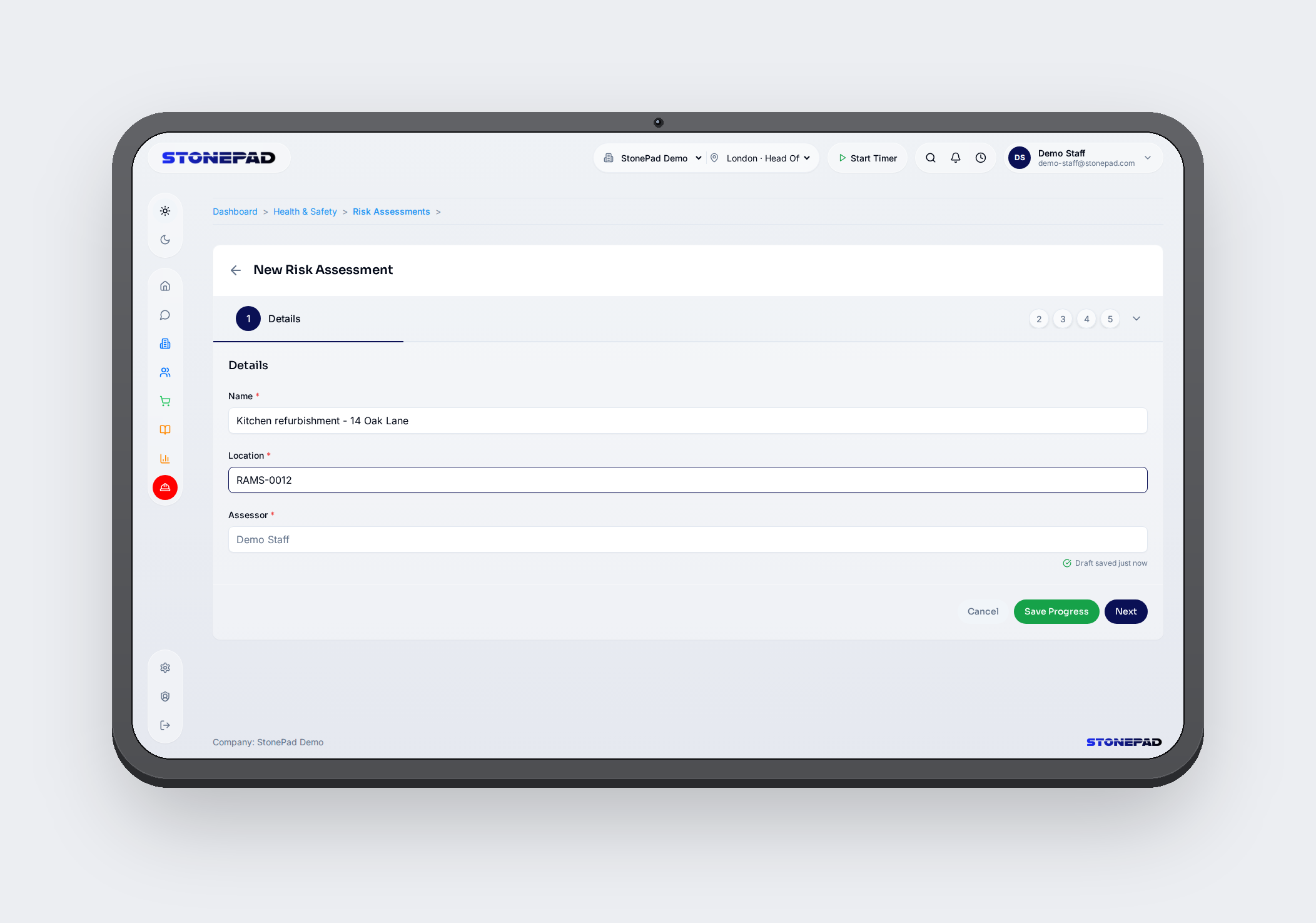
Description :
A risk assessment records the hazards in a task, who could be harmed and the controls that keep people safe. StonePad keeps them in one list, with review dates and signatures.
1. Open Risk Assessments
Go to Health & Safety > Risk Assessments. The tabs are Company RA, Workers RA, Young Persons RA and Disabled Worker RA. On Company RA, click Add Risk Assessment.
Choose Create from Blank or Use AI to draft one.
2. Details, PPE and guidelines
- Details: Name and Location are required. The Assessor is filled in for you.
- PPE: select the protective equipment needed.
- Guidelines: add any guidance text.
3. Working method and hazards
- Working Method: add at least one method.
- Hazards: add at least one hazard and complete its details.
StonePad tells you what is missing, for example Please add at least one working method or Please add at least one hazard.
4. Save
Use Save Progress to continue later. When you are done click Save Assessment. The review date is set automatically to one year after you save.
5. Sign and track
- Click Sign Risk Assessment, enter your Full Name and sign. The list shows Signed or Unsigned.
- The Status column shows Active, Review Due Soon or Review Overdue.
- Use View PDF and Risk Register for the documents.
Workers see risk assessments under Safety > Risk Assessments, where they open the PDF and sign to confirm they have read it.
Key take away
Add the assessment, sign it, and keep an eye on the Status column so reviews never lapse.