
How can we help you?
Find quick answers, setup guides, and practical automation tips.
Description :
A RAMS (Risk Assessment Method Statement) sets out how a job will be done safely. StonePad guides you through it step by step, and can draft much of it with AI.
1. Start a new RAMS
Go to Health & Safety > RAMS and click Add New RAMS. Choose how to create it:
- Use AI - answer a few questions and let StonePad draft the RAMS.
- Create from Blank - fill in every step yourself.
2. The AI route
Under Generate RAMS with AI, complete 1. Project Information (reference, site manager and address) and 2. Description (what the work involves), then click Generate RAMS. The AI drafts the site hours, operational sequence, PPE, hazards and more. Check every step before you save.
3. Work through the steps
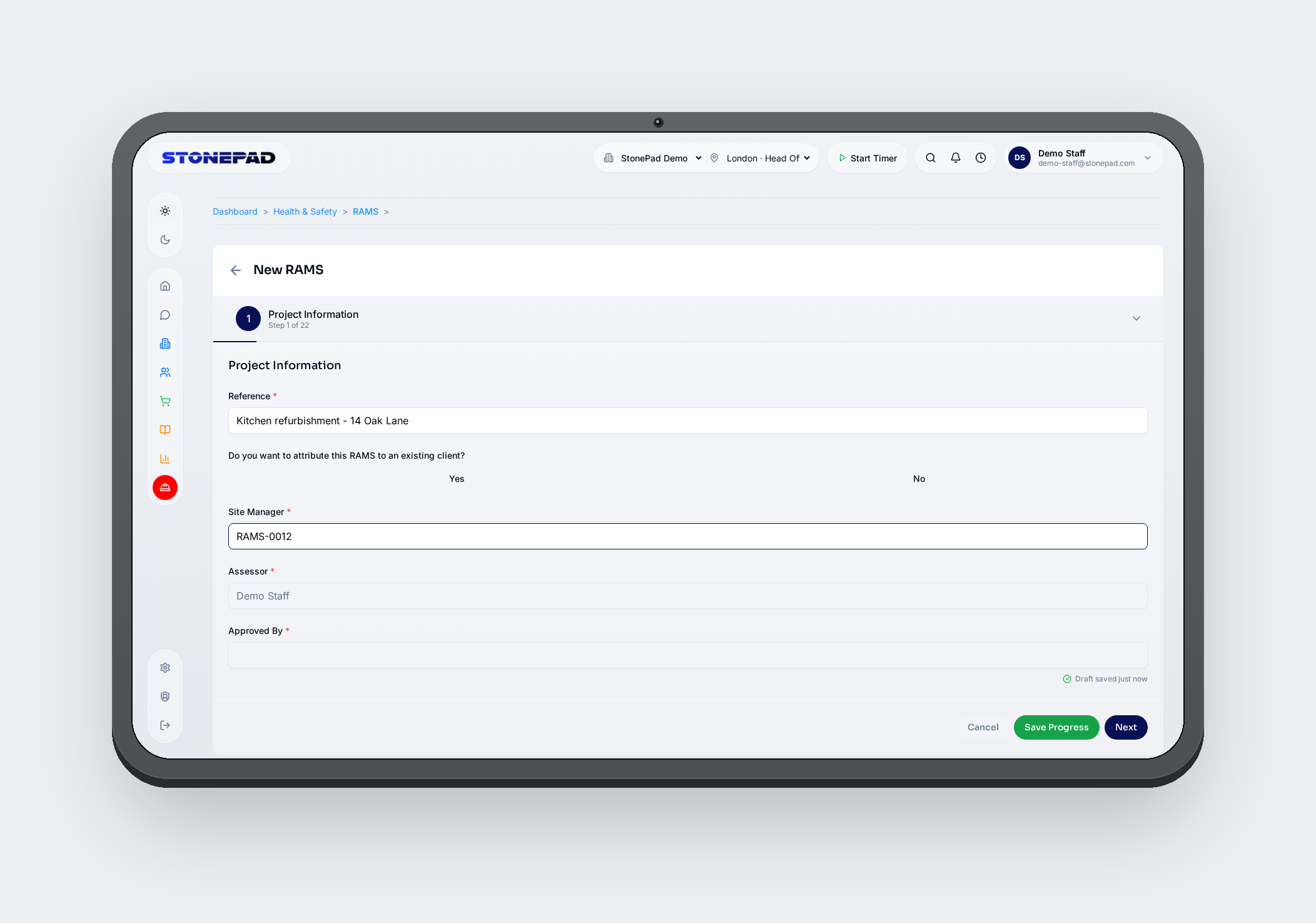
The RAMS has 22 steps, from Project Information and Site Address through Operational Sequence, PPE, Fire Action Plan and Order of Works to Risks and Hazards. Use Next and Previous to move around.
- Project Information: Reference, Site Manager and Assessor are required. You can link the RAMS to an existing client or project, or type a project name.
- Site Address: 1st Line, Town, County and Post code are required. Use Address Lookup to fill them in.
- You must also complete the Description of Works, the Operational Sequence and at least one hazard in Risks and Hazards.
Other steps are pre-filled from your company defaults, so check them and change anything that does not apply.
4. Save your work
Click Save Progress at any time to keep working later. On the last step, click Save RAMS. The RAMS is added to the list with a RAMS Number, Date, Client Name and Site Reference.
5. Issue it
- Share RAMS emails the RAMS as a PDF. Edit the message if you like and click Send Email. The button is disabled if email sending has not been set up for your company.
- View PDF opens the document to print or send yourself.
- Risk Register creates a risk register for the RAMS.
Workers can find the RAMS under Projects > the project > RAMS, where they can view the PDF and risk register but not edit it.
Note: RAMS do not have a Draft or Issued status. Once saved, the RAMS is ready to share.
Key take away
Use AI to get a first draft quickly, then review each step before you save and share it.